Why Part Number Search Is the Make-or-Break of B2B Ecommerce
While in the B2C environment, shop visitors like to browse and find suitable products through keyword searches; clocks are ticking completely differently in the B2B environment. Where similarity and variety were an asset, precision is required here. The exact search for suitable (replacement) parts must deliver precise results.
Otherwise you will face complaints, returns, and customers looking for the right supplier elsewhere.
Part number search is the single most critical function of any B2B onsite search. Get it wrong, and nothing else you optimize matters.
A complicating factor is that the format in which users search often does not match the data in the company’s inventory management system. Delimiters get dropped, leading zeros appear or vanish, ‘O’ and ‘0’ become interchangeable, and your no-result rate climbs. Every zero-result page is a customer deciding whether to try again or leave.
However, with the right approach, the problem can be solved, regardless of the search technology underneath. To prove this, we will show an example of what configuration and technology are necessary to create a functioning part number search so that you don’t leave your customers in the lurch. This increases your sales and customer satisfaction, optimizes your processes (e.g., unnecessary returns), and gives you a competitive advantage.
The Technical Challenges Behind Accurate Part Number Matching
The goal is simple: the visitor’s query must match your inventory data. That’s what search relevance comes down to in B2B. The hard part is query normalization, getting messy human input to align with clean system data.
The devil is in the details:
- Spaces
- Special characters, such as -, /, or alike
- Case sensitivity (uppercase/lowercase)
- Leading zeros, e.g., in EANs
- Ambiguous characters: 0 and O, 1 and l, – and –
These aren’t edge cases. They’re the everyday reality of SKU search and part number lookup in any B2B shop with more than a few hundred products.
A Step-by-Step Approach to Query Normalization
- To prevent data or search inputs from being split (tokenized), all delimiters (spaces, hyphens, etc.) should be removed.
- To align case sensitivity, all characters are converted to lowercase.
- Leading zeros are removed. If this leads to ambiguities, the zeros can also be kept in one field and removed in a more normalized field.
- Ambiguous characters should be normalized. However, be careful if certain numbers are very similar! It’s better to first perform an exact search and only check for normalized values if necessary, e.g. when facing no results.
We apply these steps to both the data to be indexed and the user queries.
Building a Part Number Search in Solr: Configuration and Example Data
Let’s make this concrete. Here’s a working B2B ecommerce search engine configuration in Solr that implements the normalization steps above. The same principles apply to Elasticsearch or any Lucene-based engine.
What we need:
- Example data
- Example configuration for Solr
- Local Solr 10.0 (also works in older versions; just adapt the Lucene version)
Create a Solr collection and load the configuration from the example.
Index the example data into the new collection.
Let’s take a closer look at the important settings in detail:
<fieldType name="article_number_normalized_light" class="solr.TextField" positionIncrementGap="100">
	<analyzer type="index">
		<tokenizer class="solr.KeywordTokenizerFactory"/>
		<filter class="solr.LowerCaseFilterFactory"/>
		<!-- Removes spaces, hiphens, slashes, dots, underscores and brackets -->
		<filter class="solr.PatternReplaceFilterFactory" pattern="\\s+|[-_/\\.]|[\\(\\)\\[\\]\\{\\}]|:" replacement=""/>
		<!-- Optional: Remove leading zeros, e.g. in 00123456 → 123456 -->
		<filter class="solr.PatternReplaceFilterFactory" pattern="^0+(?=[1-9])" replacement=""/>

	</analyzer>
	<analyzer type="query">
		<tokenizer class="solr.KeywordTokenizerFactory"/>
		<filter class="solr.LowerCaseFilterFactory"/>
		<filter class="solr.PatternReplaceFilterFactory" pattern="\\s+|[-_/\\.]|[\\(\\)\\[\\]\\{\\}]|:" replacement=""/>
		<filter class="solr.PatternReplaceFilterFactory" pattern="^0+(?=[1-9])" replacement=""/>
	</analyzer>
</fieldType>
This field definition removes special characters, but it does not replace “o” and “0” or other potentially confusing characters.
This happens in the “heavy” version:
<fieldType name="article_number_normalized_heavy" class="solr.TextField" positionIncrementGap="100">
	<analyzer type="index">
		<filter class="solr.LowerCaseFilterFactory"/>
		<filter class="solr.WordDelimiterGraphFilterFactory" generateWordParts="0" generateNumberParts="0" catenateWords="1" catenateNumbers="1" catenateAll="1" splitOnCaseChange="0" preserveOriginal="1"/>
		<charFilter class="solr.MappingCharFilterFactory" mapping="mappings.txt"/>
		<tokenizer class="solr.KeywordTokenizerFactory"/>
		<!-- Removes spaces, hiphens, slashes, dots, underscores and brackets -->
		<filter class="solr.PatternReplaceFilterFactory" pattern="\\s+|[-_/\\.]|[\\(\\)\\[\\]\\{\\}]|:" replacement=""/>
		<!-- Optional: Remove leading zeros, e.g. in 00123456 → 123456 -->
		<filter class="solr.PatternReplaceFilterFactory" pattern="^0+(?=[1-9])" replacement=""/>

	</analyzer>
	<analyzer type="query">
		<filter class="solr.LowerCaseFilterFactory"/>
		<filter class="solr.WordDelimiterGraphFilterFactory" generateWordParts="0" generateNumberParts="0" catenateWords="1" catenateNumbers="1" catenateAll="1" splitOnCaseChange="0" preserveOriginal="1"/>
		<charFilter class="solr.MappingCharFilterFactory" mapping="mappings.txt"/>
		<tokenizer class="solr.KeywordTokenizerFactory"/>
		<filter class="solr.PatternReplaceFilterFactory" pattern="\\s+|[-_/\\.]|[\\(\\)\\[\\]\\{\\}]|:" replacement=""/>
		<filter class="solr.PatternReplaceFilterFactory" pattern="^0+(?=[1-9])" replacement=""/>
	</analyzer>
</fieldType>
The mappings.txt file contains examples of characters that might be confused. These can be expanded as needed.
On top of that, special characters are also removed here, and everything is converted to lowercase.
Please note that the transformations must always be applied to BOTH the index AND the query.
In the field list itself, the field containing the numbers is present multiple times.
Once in the raw form as “string”, once in the “light”-ly normalized version, and once in the “heavy”-ly normalized version:
<fields>
	<field name="_version_"             type="long"                             indexed="true" stored="true" multiValued="false"/>

	<field name="id"                    type="string"                           indexed="true" stored="true" required="true" multiValued="false"/>
	<field name="update_timestamp"      type="pdate"                            indexed="true" stored="true" docValues="true"/>

	<field name="part_number"           type="string"                           indexed="true" stored="true" required="true" multiValued="false"/>
	<field name="part_number_search"    type="article_number_normalized_light"  indexed="true" stored="true" required="true" multiValued="false"/>
	<field name="part_number_search_nh" type="article_number_normalized_heavy"  indexed="true" stored="true" required="true" multiValued="false"/>
	<field name="description"           type="string"                           indexed="true" stored="true" required="true" multiValued="false"/>
	<field name="category"              type="string"                           indexed="true" stored="true" required="true" multiValued="false"/>
</fields>

<uniqueKey>id</uniqueKey>

<copyField source="part_number" dest="part_number_search"/>
<copyField source="part_number" dest="part_number_search_nh"/>
In addition, the content of the original field “part_number” is copied to the other fields using copyField, so that the data indexing does not need to be adjusted. In the data export, only “part_number” is specified, but all 3 fields are correctly indexed.
The solrconfig.xml file contains a request handler that is pre-configured to include these fields for searching:
<requestHandler name="/artnrsearch" class="solr.SearchHandler" default="false">
	<lst name="defaults">
		<str name="echoParams">explicit</str>

		<str name="wt">json</str>
		<str name="defType">edismax</str>
		<float name="tie">0.0</float>
		<str name="sow">true</str>

		<str name="fl">
			id
			part_number
			description
			category
		</str>
		<str name="qf">
			part_number^100
			part_number_search^10
			part_number_search_nh^1
		</str>
		<str name="q.op">AND</str>
		<str name="mm">100%</str>
		<str name="rows">5</str>
	</lst>
</requestHandler>
Field weighting ensures that an exact match on the raw part number scores higher than a match on the normalized version. The principle: reward precision. An exact match search should always outrank a fuzzy one.
Let’s take a closer look at the results for different search inputs:
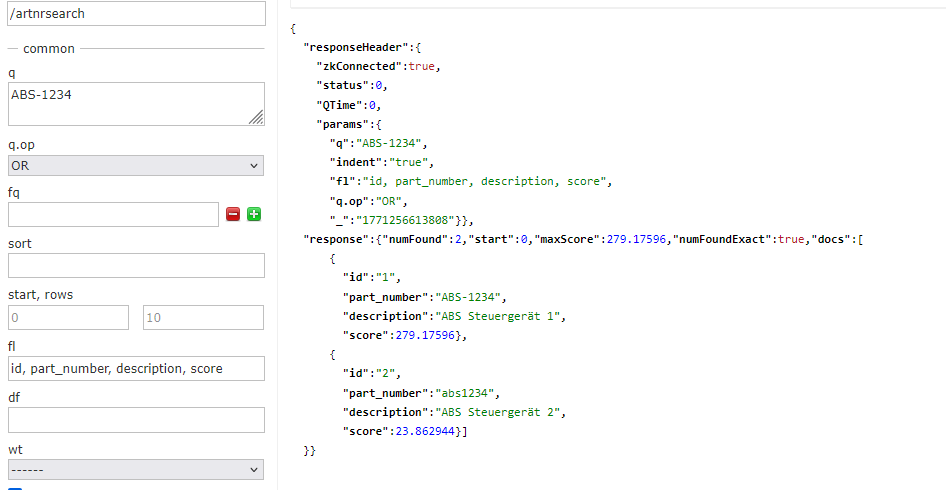
The exact hit with ID 1 received significantly more scoring points than the hit with ID 2.
As configured, the exact match is preferred. Therefore, the best hits should always be displayed first.
Conversely, if you search for the exact ID of article 2:
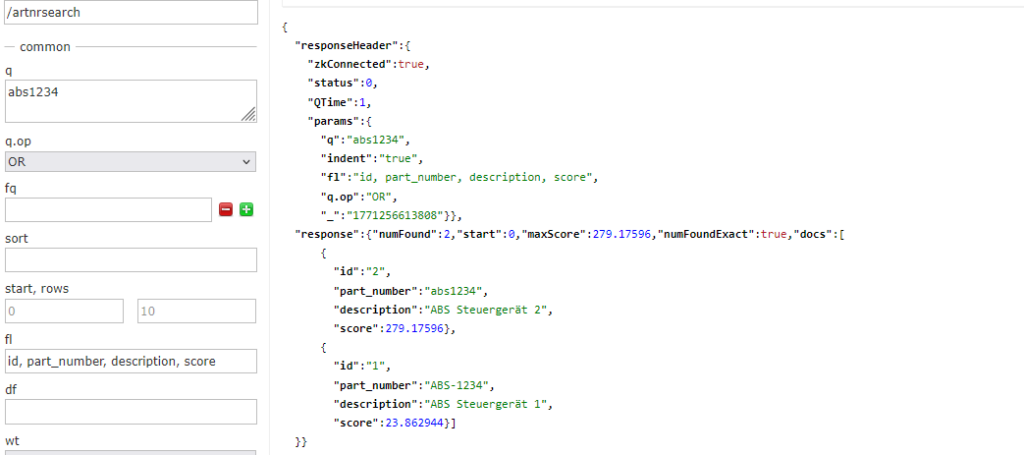
“ABC-5678” exists twice, once with a normal “-” character and once with the extended “-” character.
This should normally not occur in your data, as these are fundamentally different items. It is only used here to illustrate the data transformation. Both items will always be found.
In the last example, the character replacement is shown again, as “0” and “O” and “1” and “l” are equated.
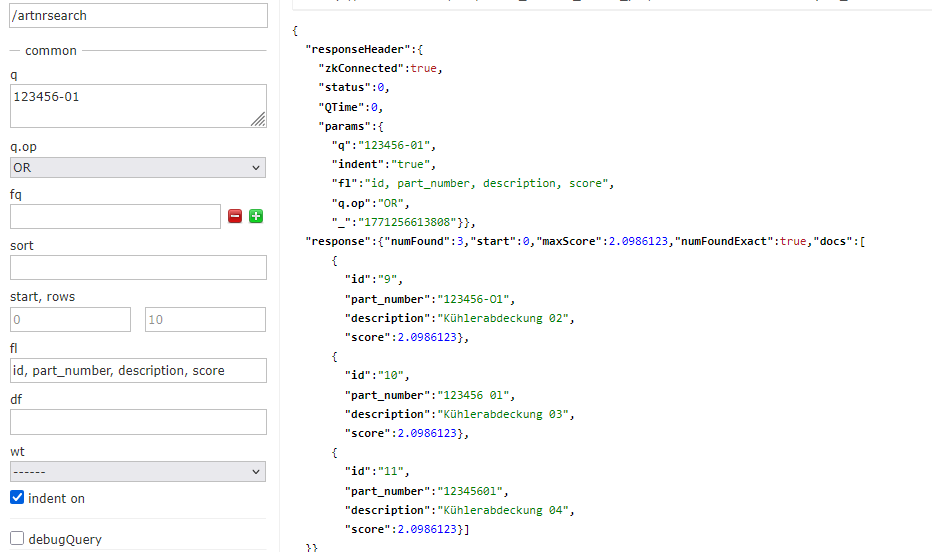
Even spaces in the part numbers do not prevent the products from being found.
(!) There is an important limitation: Spaces in the visitor’s input must be removed before searching in Solr. This is because the query parser splits the search term by spaces as the first step.
This can only be circumvented if a WordDelimiterGraphFilterFactory is also configured, which merges space-separated parts and then searches.
In addition, the query must then be searched as a phrase, i.e., it must be enclosed in quotation marks.
Example:
<fieldType name="article_number_normalized_heavy" class="solr.TextField" positionIncrementGap="100">
	<analyzer type="index">
		<filter class="solr.LowerCaseFilterFactory"/>
		<filter class="solr.WordDelimiterGraphFilterFactory" generateWordParts="0" generateNumberParts="0" catenateWords="1" catenateNumbers="1" catenateAll="1" splitOnCaseChange="0" preserveOriginal="1"/>
		<charFilter class="solr.MappingCharFilterFactory" mapping="mappings.txt"/>
		<tokenizer class="solr.KeywordTokenizerFactory"/>
		<!-- Removes spaces, hiphens, slashes, dots, underscores and brackets -->
		<filter class="solr.PatternReplaceFilterFactory" pattern="\\s+|[-_/\\.]|[\\(\\)\\[\\]\\{\\}]|:" replacement=""/>
		<!-- Optional: Remove leading zeros, e.g. in 00123456 → 123456 -->
		<filter class="solr.PatternReplaceFilterFactory" pattern="^0+(?=[1-9])" replacement=""/>

	</analyzer>
	<analyzer type="query">
		<filter class="solr.LowerCaseFilterFactory"/>
		<filter class="solr.WordDelimiterGraphFilterFactory" generateWordParts="0" generateNumberParts="0" catenateWords="1" catenateNumbers="1" catenateAll="1" splitOnCaseChange="0" preserveOriginal="1"/>
		<charFilter class="solr.MappingCharFilterFactory" mapping="mappings.txt"/>
		<tokenizer class="solr.KeywordTokenizerFactory"/>
		<filter class="solr.PatternReplaceFilterFactory" pattern="\\s+|[-_/\\.]|[\\(\\)\\[\\]\\{\\}]|:" replacement=""/>
		<filter class="solr.PatternReplaceFilterFactory" pattern="^0+(?=[1-9])" replacement=""/>
	</analyzer>
</fieldType>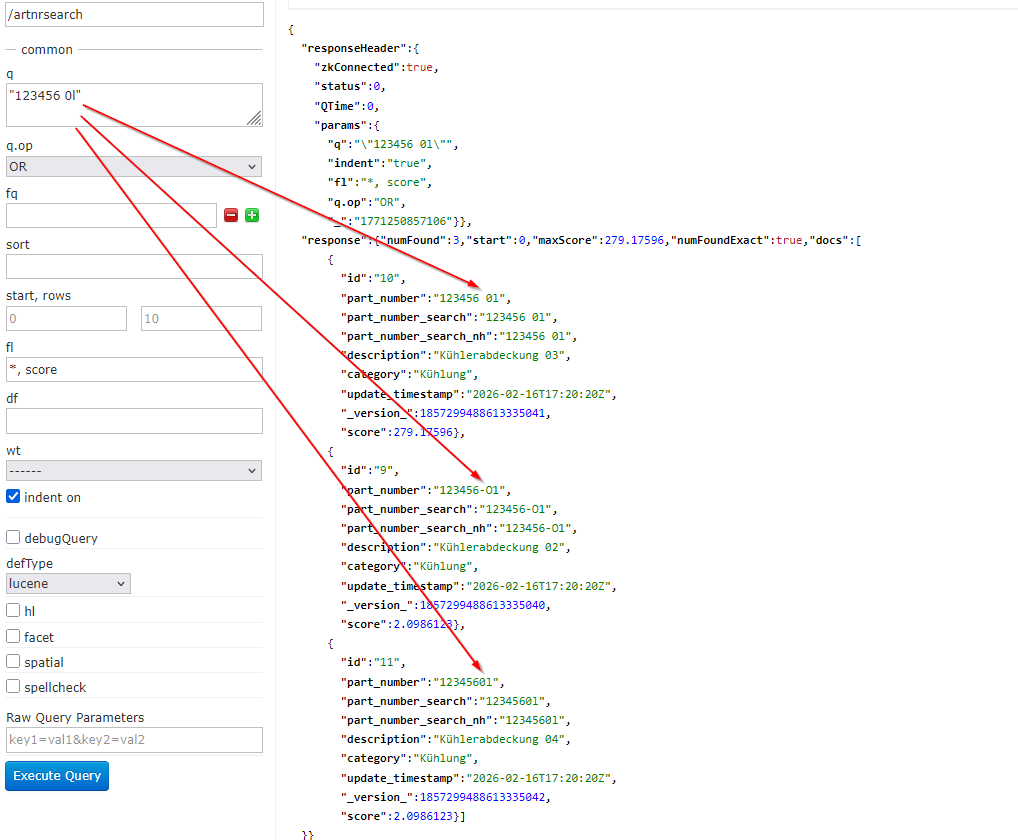
Beyond Exact Match: Edge-NGrams, Partial Input, and Successor Products
The approach shown ensures that visitor inputs are always optimally aligned with the part numbers. This ensures that customers find the right product, as long as it is in stock.
Additionaly, to find matches based on partial inputs, so-called Edge-NGrams can be used.
For example, the beginning or end of a part number would also lead to hits. The previous approach excludes this to achieve the best possible search accuracy.
Ultimately, however, the search behavior of your visitors also determines whether the solution needs to be expanded.
It is also possible to find predecessor or successor products by storing their part numbers in an additional field and adding them to the searchable fields. These hits should be visually distinguished, as they are not exactly the products that were searched for.
Part number search isn’t a feature request. It’s the baseline for any serious B2B onsite search solution. The normalization approach shown here works regardless of which search engine sits underneath – Solr, Elasticsearch, Algolia, FACT-Finder, or anything else. The question isn’t whether you need this. It’s whether your customers are already leaving because you don’t have it.